Safety Warnings
This product is intended to be installed indoors. Keep this product away from water, fire, humidity, or hot environments.
Use only the power supply and accessories approved by the manufacturer, which can be found in the original packaging of this product.
We cannot guarantee that no accidents or damage will occur due to the improper use of the device. Please use this product with care and operate at your own risk!
Unit Diagram
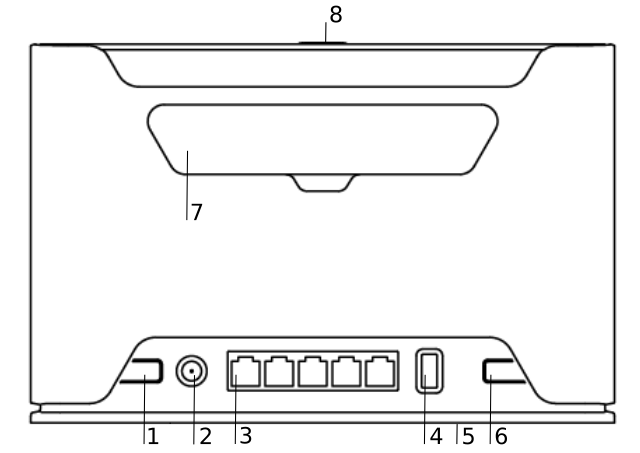
- Reset button.
- Powering DC jack 2.0 mm.
- Five Gigabit ports. From Left to Right: Ether 1 – AUX1 Port. Ether 2-5: LAN Ports.
- USB type-A slot.
- SIM slot for Micro sim card.
- Mode button.
- Cover for antenna connectors (included in package).
- Sync button (Do not use).
Quickstart
Please follow these quick steps to set up your device:
- Connect supplied antennas to the rear of the unit. Do not power on without antennas connected.
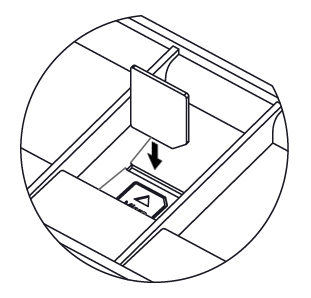
- Insert micro SIM card into the slot located under the device (If device was purchased with a SIM this will already be inserted).
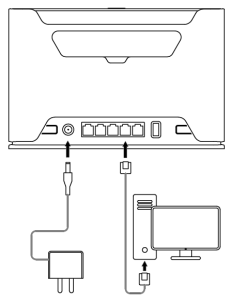
- Connect the supplied power adaptor (24v 1.2a DC) to the round DC port on the left side of the unit.
- Connect your computer to any LAN port.

- The default WiFi SSID is ‘SimRush-xxxxxx’. The password is the hardware serial number as the password, e.g. AABBCC112233.
- The serial number is located on the box or on the back of the Controller, all characters before the ‘123’.
- To make changes to the LAN address or Wireless settings (such as personalising your wireless SSID) please visit NetPanel: https://netpanel.app/
Mounting
The device is designed to be used indoors, by placing it on the desktop.
Powering
The device accepts power from an adapter:
-
- Direct-input power jack (5.5 mm outside and 2 mm inside, female, pin-positive plug) 12-28 V DC⎓.
The power consumption under maximum load can reach 17 W, with attachments 23 W.
Configuration
We recommend subscribing to the SimRush Licence to ensure you always receive the latest hardware firmware updates for your device.
Front LED Status

-
- Wireless network activity.
- Ethernet port activity.
- System LED.
- LTE signal strength.
Cellular connection technology based on the System LED colour:
Red: GSM
Yellow: 3G
Blue: LTE
Green: 5G NSA
Violet: 5G SA
Led not blinking: Not registered
SIM slot usage
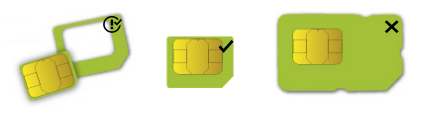
SIM card slot is designed to use with Micro SIM cards.
Nano SIM cards have different thicknesses, usage with an adapter is not recommended.
Reset button
The reset button has three functions:
- Hold this button during boot time until the LED light starts flashing, release the button to reset RouterOS configuration (total 5 seconds).
- Keep holding for 5 more seconds, LED turns solid, release now to turn on CAP mode. The device will now look for a CAPsMAN server (total 10 seconds).
- Or Keep holding the button for 5 more seconds until LED turns off, then release it to make the RouterBOARD look for Netinstall servers (total 15 seconds).
