This page will run through a number of troubleshooting options for your SimRush Power Controller. If after completing all troubleshooting steps listed on this page, you’re still having issues, please contact your Technical Reseller for further support.
1. Check Data Supply
Check the network status of your carrier
Follow these links to access the checkers for each individual carrier:
EE: https://coverage.ee.co.uk/coverage/ee
Vodafone: https://www.vodafone.co.uk/network/status-checker
If the carrier is showing issues in your postcode area, this will likely be the reason for the issues you’re experiencing. Please continue to check the status of the service from the carrier. Once the network has been restored your service should return to normal.
Check with your SIM carrier that your account is all up to date (e.g. payment has been processed) and confirm no bars of restrictions have been applied to your account that may stop you from receiving a data service.
2. Check Power
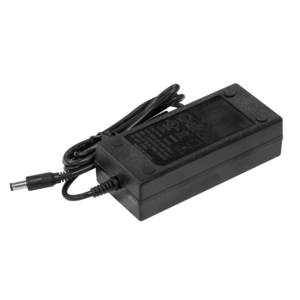
Check that the power supply in your SimRush Controller is a 24v 2.5a power supply. This can be found on the plug itself as shown in the image below.
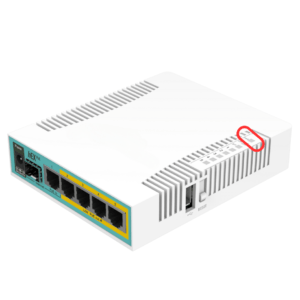
Check that the controller is receiveing power. To confirm the controller is getting power a Green LED light will be illuminated on the back of the unit. The image below shows where the Green LED will appear if the controller has power.
To check the ODU has power an LED light should be lit on port 5 of Controller. Where the light should be can be seen in the image below.
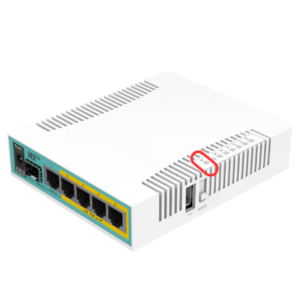
See section 3. Check Cabling, to confirm your outdoor unit is connected to the correct port.
3. Check Cabling of SimRush Power
Ensure all the cables associated with your SimRush Power are connected to the right ports of your SimRush Power Controller. The diagram below shows what each port should be used for and confirms which port your SimRush Outdoor unit(s) should be connected to.
4. Power cycle the hardware
Completely power down the controller unit. Remove the power supply for the controller unit and leave unplugged for at least 15 minutes. By doing this it allows for the hardware and local mast to clear any stale sessions.
Once 15 minutes has passed re-plug the controller back in and allow the system to power up once again. Test the connection 10 minutes after everything has been plugged back in.
5. Still having problems?
Is after completing all the troubleshooting steps outlined on this page, please reach out to your Technical Reseller. Please confirm to them you have completed the troubleshooting steps and provide as much detail as you can about the problem you’re experiencing.

