The SimRush Easy IP WiFi is a small, affordable device that you can connect to your existing router to provide you with a static IP address. It is pre-configured out of the box.
To get online, simply turn on the device as instructed below.
Get online:
Make sure you follow the following steps to get online.
Single WAN
- Connect the supplied power adaptor (24v 1.2a DC) to the round DC port on the left side of the unit.
- Ensure your broadband router is handing out DHCP
- Connect the Ethernet Port1 ( Highlighted in RED )
- Connect your PC/Device to any LAN port (Highlighted in GREEN ) for connection to the internet via the Static IP allocated. Ethernet port 2, 3, 4, 5 are designated as the LAN.
Dual WAN
- Connect the supplied power adaptor (24v 1.2a DC) to the round DC port on the left side of the unit.
- Ensure your broadband router is handing out DHCP
- Connect the Ethernet Port1 (Highlighted in RED on image 2 below) This is set to be AUX1 and set to accept any DHCP given IP Address (NB. This must not be the same as SIM1 or LAN)
- Connect Ethernet Port5 (Highlighted in RED on image 2 below) This is set to be SIM1 and is expecting a DHCP address from 172.16.1.1/24 as gateway for WAN2
- Connect your PC/Device to any LAN port (Highlighted in GREEN ) for connection to the internet via the Static IP allocated. Ethernet port 2, 3, 4 & SFP1 are designated as the LAN.
Cable Guide:
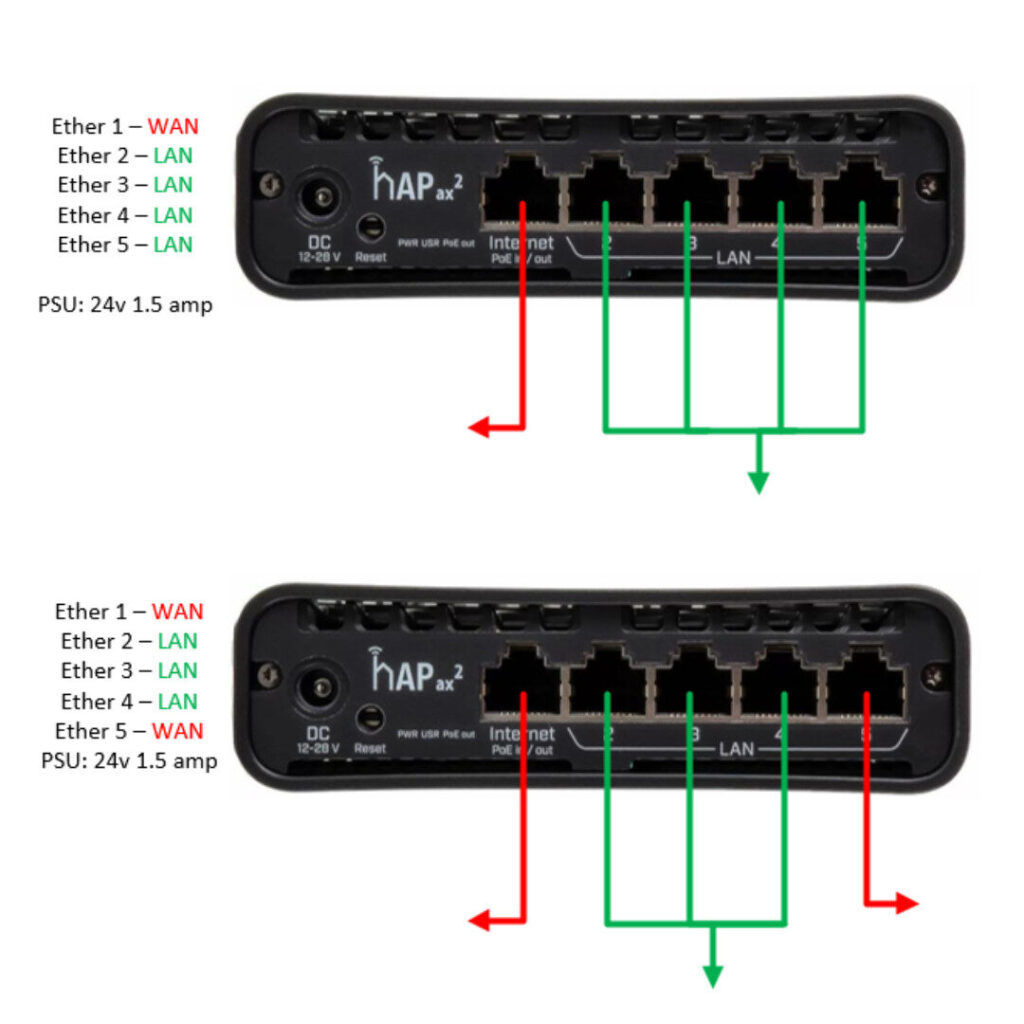
Image 2: Dual WAN Setup
Manage your Device:
To make changes to the LAN, Port forwarding and Wireless settings please go to the SImRush Management Platform: NetPanel
Please note these guides to manage your device:
Port Forwarding: NAT Rules & Port Forwarding – NetPanel.app
Enable/disable the Public IP Address: Public IP Address – NetPanel.app
You will have received NetPanel login credentials. If you have not received your login details, please contact your reseller
