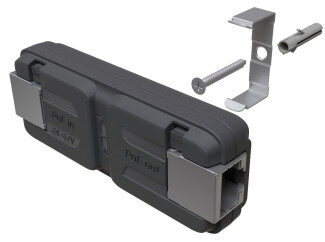
The GPeR is designed to extend the PoE capabilities beyond the suggested length of 30-50m.
By fitting a GPeR at the end of a suggested cable run, it will then extend the length for a further 50-100m.
A max of 7 GPeRs can be used for 24v output at the last point for PoE
A max of 3 to maintain ~45v output
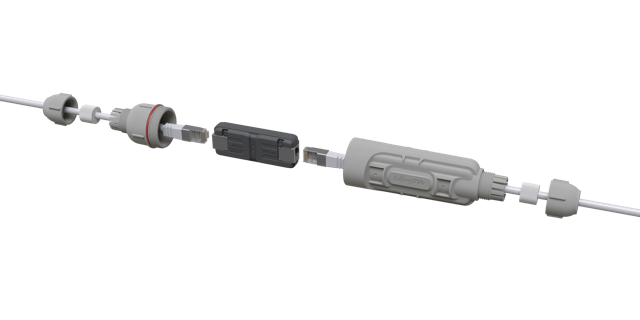
Optional IP67 rated case
Optional case not included and is purchased separately
Instructions:
Please follow the below guide to connect your GPeR device.
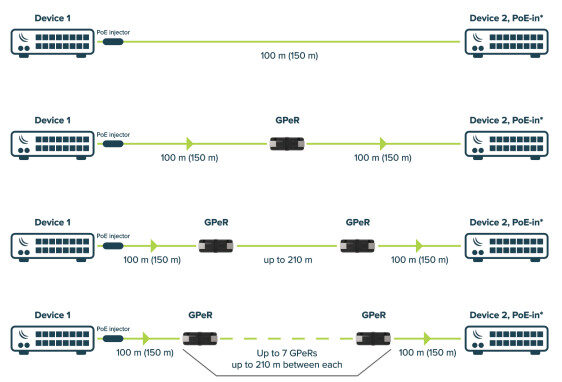
⚠️ Voltage drop on the cable and on GPeR units needs to be taken into account when calculating PoE-in possibility, in case of insufficient power take off PoE jumpers to disable Passive PoE passthrough and use other power source for Device 2.
| Distance | Voltage IN (V) | Voltage OUT (V) |
|---|---|---|
| Device 1 (0m) | – | 57 |
| GPeR 1 (100 m) | 53.5 | 53.2 |
| GPeR 2 (310 m) | 46.1 | 45.8 |
| GPeR 3 (520 m) | 39.7 | 39.4 |
| GPeR 4 (720 m) | 34.0 | 33.7 |
| GPeR 5 (930 m) | 29.2 | 28.9 |
| GPeR 6 (1140 m) | 25.1 | 24.4 |
| GPeR 7 (1340 m) | 21.1 | No PoE (Jumpers OFF) |
| Device 2 (1440 m) | – | – |
Connecting
• Connect your desired network cable with power to the PoE in Ethernet port, and extend it trough PoE out.
• Connect the cable to next GPeR unit or the other device.
• Check your final device on the line, for PoE compatibility and use jumpers to manually disable PoE out- if
not needed, see section Jumper usage.
Powering
The device require power to the Ethernet port:
• Ethernet port accepts passive PoE or 802.3af/at DC 24 – 57 V⎓.
The power consumption under maximum load can reach 2 W.
Connecting to a PoE Adapter:
- Connect the Ethernet cable from the device to the PoE+DATA port of the PoE adapter.
- Connect an Ethernet cable from your local network (LAN) to the PoE adapter.
- Connect the power cord to the adapter, and then plug the power cord into a power outlet.
Jumper usage
If the destination device does not support PoE powering, the power passthrough can be disabled manually by removing both jumpers on the “PoE out” side. This will only work if “PoE in” is served by passive PoE source, as 802.3af/at switches will not be able to power the GPeR itself.
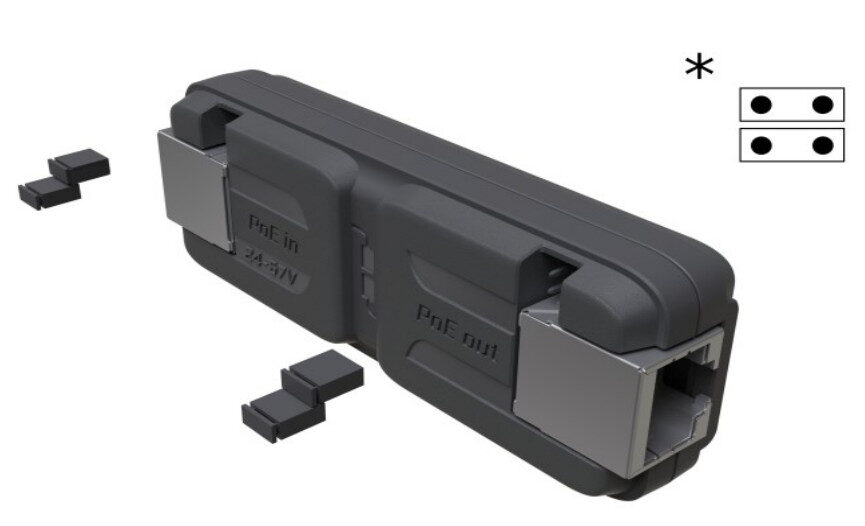
- When reattaching jumpers, please note horizontal placement as shown bellow:
When all four jumpers are connected GPeR works in both directions.
Mounting
The device is designed for use indoors, the IP rating scale for this device is IPX0. It is possible to attach the device to a wall, using the provided screw hole on the mounting bracket of the unit.
Recommended using Cat5/6 cable.