It is pre-configured out of the box and managed through the SimRush web portal NetPanel.
To get online, simply plug in your SimRush Outdoor unit (ODU) into your SimRush Controller (IDU) as instructed below.
Instructions:
- Disassemble the cable gland and feed ethernet cable through to connect it to the ethernet port of the ODU-5G Omni.
- Ensure once cable is clicked in, the cable gland is screwed back in with the rubber seal around the cable and tightened hand tight.
- Attach mounting bracket to Pole using the supplied Hose Clamp / Jubilee clips or alternatively affix the mounting plate to a flat wall surface
- There is a locating hook at the bottom which hooks into the bracket, use the supplied screw on to secure the unit at the top of the bracket to stop the unit from unhooking.
- Using a Browser, browse to http://172.16.1.1/
- Login details are, Username: installer , Password: installer
- Once you are logged in, the main status page will show you the current details of the system along with signal.
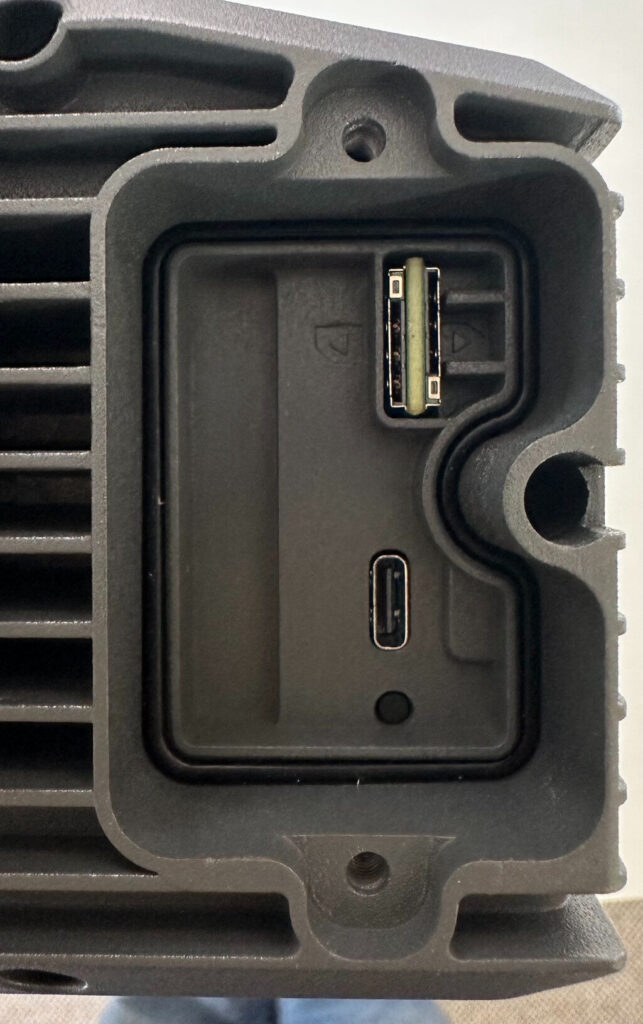
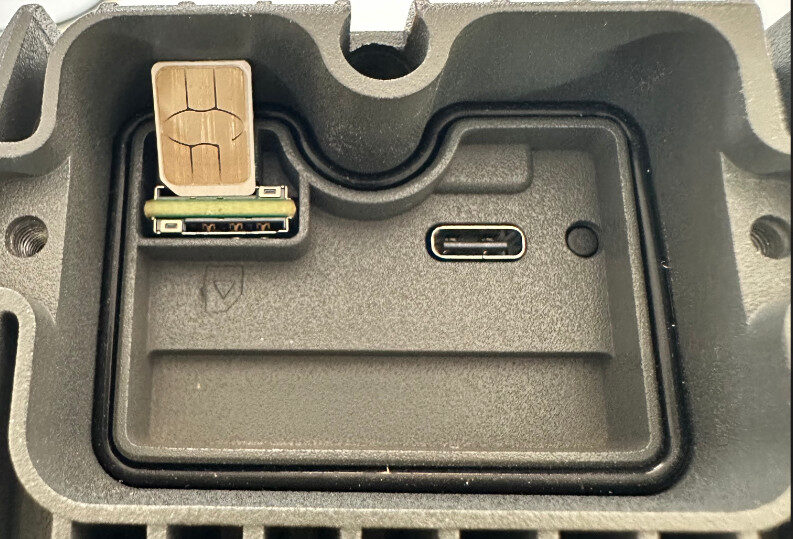
- If you need to change the SIM card
- Carefully unscrew the hatch at the bottom of the ODU-5G Omni
- ⚠️ Note that the screws are not captive and will fall out if the unit is already mounted.
- The SIM slot on the outer edge is SIM Slot 1.
- Carefully unscrew the hatch at the bottom of the ODU-5G Omni
- Further information about the Outdoor unit settings can be found on the SimRush FAQ’s section of the SimRush website: SimRush: General FAQs | SimRush
One the setup is connected to the local mast, you can manage your SimRush controller as below.
To make changes to the LAN address or Wireless settings Please follow the IDU Controller guides.
Cable Guide:
Outdoor unit may vary from that of image, but port to put the ethernet cable in remains the same
SimRush ODU 5G Omni SIM Slot
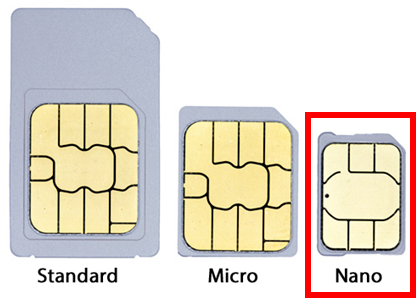
SimRush ODU 5G Omni SIM card size