Using Public IP Address
How to use Public IP
If you have purchased the public IP service and wish your own device to present as the public address, you’ll need to do the following:
Log onto SPanel
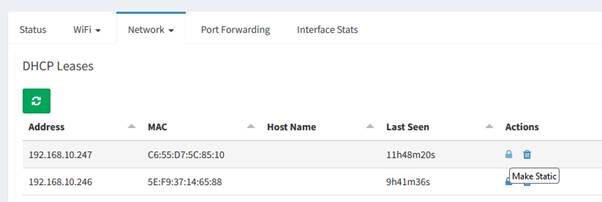
Go to your site and click on the Network tab at the top and click on “DHCP Leases”
Find your device in the DHCP list and click on the Padlock icon to make that device static within the controller
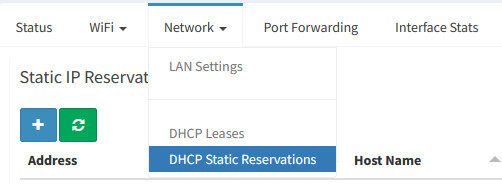
Then go to Network > DHCP Static Reservations
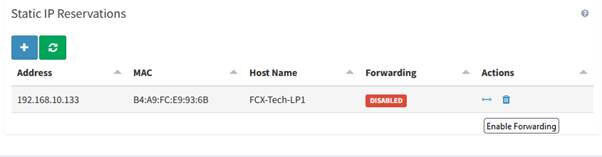
Your device which you’ve made static should then be in the list
Click on the “Left right” icon at the end to Enable Forwarding
Restart your device to take the new setting and this will now allow that device to present to the internet as the public address attached to your controller
Port Forwarding
Enable Port forwarding
If you have purchased a Public IP address service, you’ll be able to use the port forwarding feature if you are needing to forward specific ports to devices on the LAN side of the network which would not usually be available from the internet, e.g. CCTV camera/NVR
Log onto SPanel
Go to your site and click on the Port Forwarding tab
Click on the + icon to add a new entry
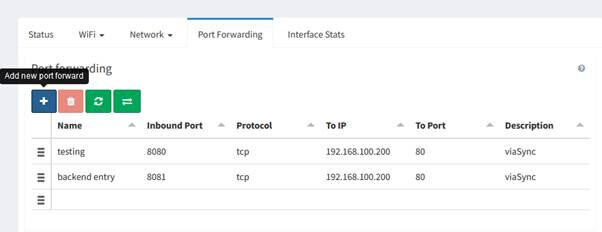
Name – this is a friendly name for the entry
Inbound Port – This is the port on the Public side you are wishing to use
Protocol – This will either be TCP or UDP depending on your rule
To IP address – This is the device on the LAN side you are wishing to access/forward to
To Port – This is the Inside port that the device is expecting to be accessed by
Description – Brief description for your own records/notes
Once the entries are complete the line will flash green briefly or Error if there is a problem and the rule will be active straight away
DHCP Reservation
If you have devices you wish to be on the same IP address and not change,
Log onto SPanel
Go to your site and click on the Network tab at the top and click on “DHCP Leases”
Find your device in the DHCP list and click on the Padlock icon to make that device static within the controller
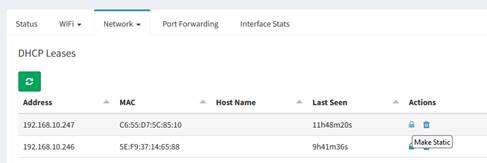
Then go to Network > DHCP Static Reservations
This will now show the list of any device which you have made into a static reservation from the DHCP list
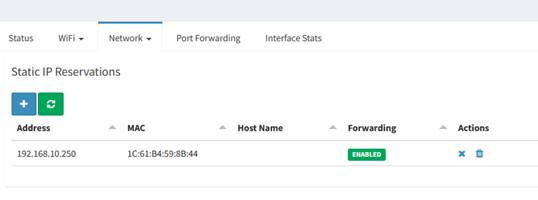
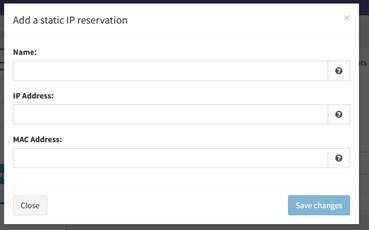
If you have a device which is not being issued with DHCP or that you know the MAC address you can manually input these details by pressing the + icon